 Pigeon
How to save TikTok and Instagram posts to Pigeon
Add Pigeon to your iPhone share sheet and turn videos, posts, and screenshots into saves you can find again.
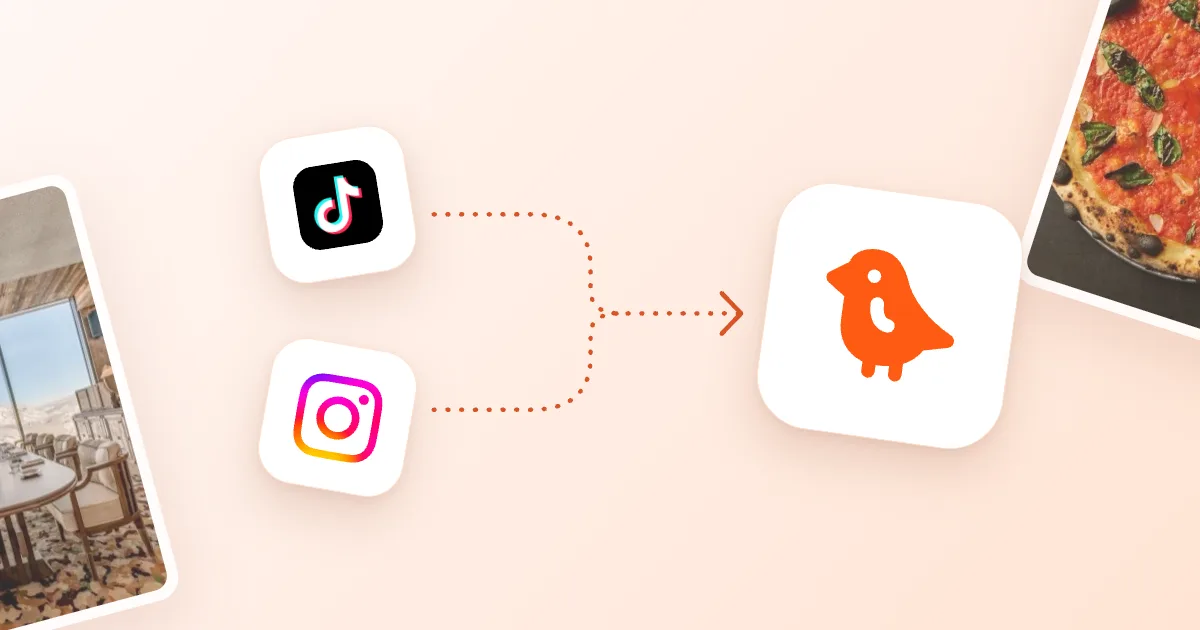
Try this with a TikTok or Instagram post you’ve been meaning to come back to. A recipe, a workout, or a place you want to visit makes a good first save. Once you’ve set up the iPhone share sheet, you can send the next post without leaving the app you found it in.
1. Open the iPhone share sheet
Open the post’s share menu. In TikTok, start with the share arrow on the video. In Instagram, start with the share button on the post or reel. Look for More or the option that opens the iPhone share sheet.
If you can’t open the iPhone share sheet, copy the post link. In Pigeon, open Saves, tap +, paste the link and tap Save.
2. Put Pigeon in Favorites
If Pigeon isn’t in the share sheet’s app row, swipe to the end and tap More. Tap Edit, add Pigeon to Favorites, and tap Done. Favorites stay near the front of the share sheet for the next time you share.
3. Send the post and check your save
Choose Pigeon and tap Save to Pigeon. Open your Pigeon library after processing to see what the post contained. A recipe post might yield a recipe with ingredients and steps. A neighborhood guide might give you several places to look up. Check the source if you need to confirm a detail.
Try the same workflow with a post from Safari or a screenshot from Photos. If an app gives you a link or an iPhone share sheet, you have a way to send it. The support center has more help with saving and sharing.